Printer economics


The Story of Durable to Disposable

What I am about to reveal may seem like a fairytale to anyone who has purchased a printer in the last 8-10 years, but it is how things were, even as recently as eight years ago.

There was a time in the printer industry when printers, by today’s standards, seemed to be very costly.  They were built like tanks, and designed to last for years.  They tended to be large and heavy, and people bought them thinking they would be keeping them for a long time.  The cost of the consumables, ribbons, toner cartridges, or ink cartridges,  cost only a small fraction of the cost of acquisition of the printer.

Back then, most people who had printers used dot matrix models.  They were noisy and slow and they could barely print reasonable text, let alone graphics.  The printers cost $400 to $1000 or more, and the ribbons, which lasted hundreds of pages cost $5-10 to replace.  Even back then, companies sprang up making ribbon reinking systems and 3rd party or repack ribbon cartridges appeared, saving 50% or more on name brand product.  The printer manufacturers sometimes made noises about their printer consumables being superior but didn’t much seem to care, however, because they were making their profit on the sale of the printer itself.

When laser printers came onto the scene, the scenario changed a bit.  The printers were even more costly, still built like tanks, and the toner cartridges were large and complex, but still the cost was only a fraction of the printer cost and they typically lasted for thousands of pages before requiring replacement. Again, an aftermarket developed for both toner refills and reconditioned toner cartridges for those who wished to save on consumables.  And although the printer manufacturers desired the extra profits from consumables, the main profits were still in the printer sales.

Several different approaches were taken to dealing with consumables with laser printers. Laser printing technology requires three distinct consumable elements, those being developer, toner and the image drum, each one having a different potential useful life.  The toner powder itself is the only component that is used up in the printing process.  Some printer manufacturers, therefore, provided each element as a separate replaceable part.  While this lowered the price of maintaining the printer, it was more messy and required a better understanding of the printers inner workings to know which consumable had run its course and required replacement. It also required keeping more spare parts in reserve.  Some companies integrated the developer and toner power into one product, both of which were fused onto the paper.  That left just the image drum separate. Since the drum lasted many toner/developer replacements, that made some sense.  Still another innovation allowed for excess toner which remained on the drum after the print was produced, to be returned to the toner supply and be used again.  This lengthened the number of prints that could be produced per toner fill, and lead to smaller cartridges yielding the same number of prints.  Ultimately, many companies moved to a self contained toner, which was replaced when the toner powder ran out.  This allowed for a nearly clean process of replacement, but it increased costs of the toner cartridge since it contained a good part of the printer engine, including the image drum, which had a lot more life in it that one toner fill. That inspired more demand for toner cartridge refilling by 3rd party companies, such that some original manufacturers began to also offer a refilling or refurbishing program for their own cartridges, but at a premium over other providers.

These early printers were so well made that they rarely broke down. That meant they stayed in use for years, and were often resold for a second life. The problem with that was that the printers were being replaced very slowly, leaving the manufacturers with decreasing sales.  In order to get some of these units out of circulation, some manufacturers began offering trade in or trade up programs, which eventually took many of these older, but well built machines out of circulation.

Having learned their lessons, the printer manufacturers released newer generations of printers which were smaller, less durably built, and with smaller toner cartridges, as much to reduce the size and weight of the printers as to give the consumables smaller yields.  Still, the printer costs allowed for a great enough profit that the consumables were priced within reason as a small percentage of the cost fo acquisition.

When inkjet printers reached the market, the ratio of acquisition cost to consumables was still kept reasonable in the beginning. The ink cartridges were quite large and provided great quantities of output.  However, competitive pressures and inability to broaden markets fast enough, plus the very substantial and rapid technological changes in printer technologies, began to push manufacturers into different sales models.  They realized that price point was a key to increased sales, and the cheaper the printer could be sold for, the more market share that company could acquire. As pressures were brought to bear to speed up the replacement cycle, a race was on to the bottom price.  Yet, the costs of research and development and manufacturing could not justify those low prices, so something had to make up for lost profits.

Birth of the “Razor Blade” Business Model in Printers

Years ago, when disposable razor blades came on the market, replacing straight razors which were sharpened before each use, in order to get people to switch to the new disposable blades, manufacturers of the blades gave away the blade holder.  These holders were often quite elaborate in look.  But giving away the handle was costly, so the loss was taken up by selling the disposable razor blades that fit them at a premium price. Thus the razor blade business mode was created and is still used to this day. Polaroid adapted a similar business model with their cameras and film packs, keeping the initial cost of acquisition of the camera low but the cost of film substantial.

With inkjet technologies, three different types of design developed.  Early inkjet printers used a thermal head system that literally boiled the ink to propel it out of very small nozzles.  This system is still used today for some models, with heads are usually incorporated within the ink cartridge   Most of these cartridges are designed to be discarded after the ink runs out, but in reality, they can survive numerous refills until the image quality degrades or the head fails.  A more recent variation on this is a separate ink cartridge and head, where the head can last up to 20 ink cartridges or refills.

Yet another design, called piezo (electric), uses numerous electronically activated mechanical  pumps within the head.  These heads were designed to last for many years without replacement, and all piezo head inkjet printers have ink cartridges which are separate from the heads..

When printer manufacturers were finding they were in the midst of a price war, the razor blade business model began to look like a good alternative.  Buyers rarely research the cost of consumables prior to making a purchase, and keeping the cost fo acquisition low enough makes printers very inviting. It is often only after the purchase, that buyers determine how costly consumables could become.  The cartridges were at first only made slightly smaller.  Over time the printers began to be sold with  “starter cartridges” which may only have had 50% of the ink found in a full cartridge. Cartridges became progressively smaller and smaller.

As the cost of printers dropped to gain new markets, the cost of consumables rose to compensate, allowing 3rd party cartridge and refill services to flourish, which offered 50-90% discounts on ink cartridges.  With the cost of printers so reduced, and the business model designed for the ink cartridges to cover the profit margins, maintaining printer owners buying the original manufacturer’s cartridges became critical to the survival of the manufacturers.

This is the point where the changes really manifested.  The battle between 3rd party consumable suppliers and the original manufacturers have moved back and forth in terms of victories. Printer manufacturers began introducing designs to make their cartridges unrefillable using mechanical methods, software and electronic circuits. Considerable R&D as well as manufacturing costs went into these design changes, some of which have made the printers more complex and vulnerable to reliability issues.

Different areas of the world have taken different approaches to this battle. In the European Union, green political forces allowed for legislation to pass which requires printer manufacturers to sell refillable cartridges for both their inkjet and laser printers starting in 2008-09. In North America, printer companies have used the courts to uphold their patents and copyrights, in some cases convincing the courts that 3rd party products should be tariffed or fined, pricing them off the market.   To constrain EU printers form being imported into other regions, some manufacturers made their printers and cartridges regional so they will only work together.

Why does where the profit comes from matter for the consumer?

Some may be asking by now why it matters if the profit is in the printer itself or the consumables.  The answer is a resounding yes!, and here’s why.

When the profit margin is built into the cost of the printer, that allows for several
considerations:

– the printer can be better designed and made to last longer
– repairing a broken printer becomes economically feasible, relative to replacement cost
– there can be savings in design and complexity otherwise used to confound refilling or in blocking the use of 3rd party consumables
– the marketplace can allow for availability of a greater variety of consumable options (different types of inks or toner sets other than those made by the manufacturer)
– cost of use per page become potentially lower
– more effort is put into designing printers which have best practice and newest technologies, rather than holding off for the next cycle
– new model cycling is slowed
– there is less impetus on the part of the owner to replace the printer
– printers are kept longer, saving energy, materials and less toxics end up in the environment
– printers keep their value longer

On the other hand, when profits are mainly generated from inks and toners:

– printers are designed to defeat refilling or use of 3rd party consumables and are designed with more complexity to accommodate these “features”
– printers are introduced on a short cycle with newly designed cartridges so they keep ahead of the refill and 3rd party designs
– printers which require repairs are more likely to be discarded and replaced
– printers which run out of consumables may just be replaced rather than just buying new peripherals
– printers are considered disposable and get discarded more rapidly, adding to the landfill and creating unnecessary and costly waste

Clearly, from an economic and well as an environmental basis, for the consumer and the planet, the “razorblade” business model is not sustainable, and particularly so with something as large and complex as a printer.

It is also clear that since this business model works for the printer manufacturers and therefore isn’t likely to change (in fact, it has now been widened to include products like color laser printers) unless the manufacturers are pressured into change. Legislation in Europe has forced refillable printer consumables.  If those of us in North America wish to see similar results, we need to lobby our political representatives to do the same.

In my next several blogs, I will provide some suggestions on ways to shop for your next printer to give yourself better value, ways to economize on consumables, and get around some manufacturer’s restrictions. I will also offer information on which printers allow for easier refilling, and other tips to keep your printer out of the landfill longer. 


My Mac doesn't recognize my HP ENVY5030


My Mac doesn't recognize my HP ENVY5030 

    My wireless system recently colapsed and hatd to take my AirPort Extreme router and AirPort Express (to exted the network signal) to the Genius bar at Apple.  They fixed the system un downloaded new software for the router.  They also changed the name of the network but kept the old password.  Now the computer doesn't recognize the printer.  The printer "wireles" light is blinking.  


solution:

(1)Turn on the printer, if it is not already turned on.

(2)On the printer control panel, touch the Wireless icon.The Wireless Summary screen appears.

(3)Touch Settings, and then touch Restore Defaults, conmfirm any prompt to confirm.

(4)Next touch the Wireless icon, Touch Settings, and then touch Wireless Setup Wizard.

(5)Follow the instructions on the control panel to reconnect the printer to your wireless network.


Samsung Xpress C460W‎ vertical white line/blur on one side of page


Samsung Xpress C460W‎ vertical white line/blur on one side of page


   Everytime I print a photo that nearly covers the entire page, a white-ish/grey-ish line is present. The line is blurry and not even. I have tried all the service features on the printer's LCD menu like cleaning, calibrate, print test pages etc but nothing has helped.
    I am not sure, but I think this problem started after I printed some self-adhesive labels that apparently were meant for inkjet printers and not laser (I did not have the paper's retail packaging, so I did not know). I thought maybe somehow one of the toners got damaged, but I have exchanged the black toner and that did nothing.
    I am attaching a scanned printout where the line is fully visible. The print looks worse after I scanned it for some reason, it does not look that bad in reality (it's really darker!)


    Finally, I found that it have adhesive on the pressure roller. If wipe it off. The problem will solved.


HP OfficeJet 4650 won't print borderless on A4 photo paper


HP OfficeJet 4650 won't print borderless on A4 photo paper


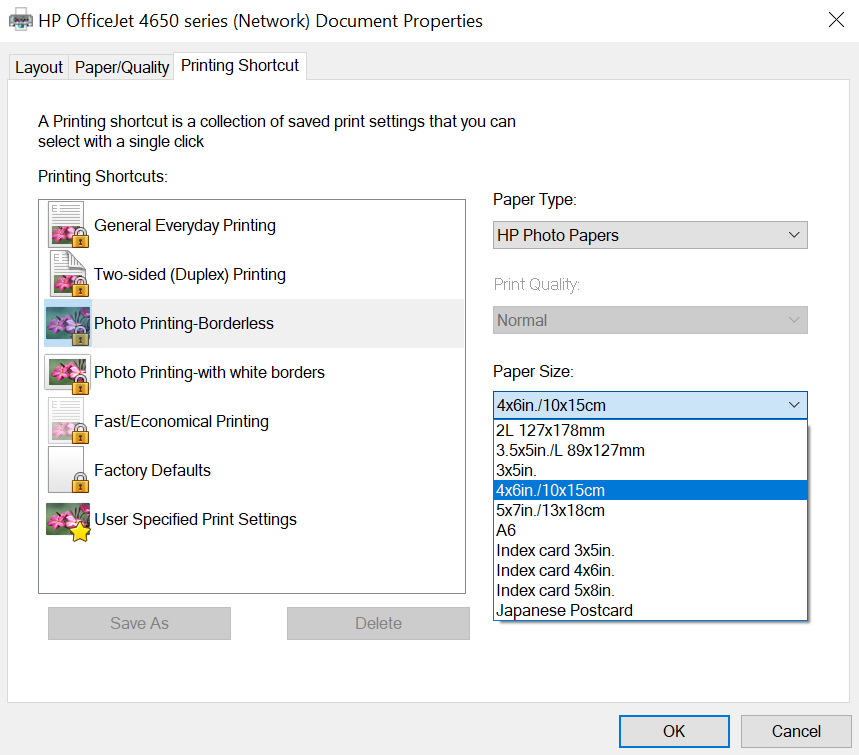
    I've asked this question on the HP forum and got no help, so thought I'd try here. I was recently given a new printer (it was unopened, but was purchased quite a while ago, so no warranty), and have been unable to use the borderless setting for A4 paper. I've looked up the product details, and A4 falls within the size it apparently supports borderless for, but it just won't do it. When using the 'borderless photo' shortcut, the size options are limited and don't include A4 as so:


    When I use advanced options to set 'A4' for size, and borderless 'on', when I press okay a dialog comes up stating these two settings conflict. 


     Any thoughts on this?

     I've since tried printing from my phone, and was perfectly able to print A4 borderless (though the quality wasn't so good, likely due to a combination of printing from a phone, and low ink levels). But yeah, the printer itself seems like it can definitely print borderless on A4, but the PC driver won't let me.

    Through a lot of messing around I did eventually manage to solve the issue myself. For anyone else that may have this problem, I uninstalled all HP software, removed the device from 'devices and printers', and removed the drivers through 'print server properties (accessible thorough 'devices and printers'). Because the last part failed at deleting one file, I reinstalled the printer driver, and uninstalled the device (along with deleting drivers) through 'device manager', before doing everyhting else again. When I reinstalled the printer through HP's software, it now allows me to print borderless on A4.

     I can only presume the issue is preinstalled drivers within Windows 10, but I don't know enough about computers to be certain.

    This software should be helpful: 
    http://www.hp.com/global/us/en/consumer/digital_photography/free/software/photo-creations.html

User unable to scan with MFC-7860DW


User unable to scan with MFC-7860DW


     A small business customer has been using a Brother MFC-7860DW for some time for printing and scanning. Now one of the users is unable to do scans using the Brother CC4 software. He can print to it just fine. No one else is having a problem.

   The error he gets says: Scanning failed.

   Please try to scan the image again, if the error happens again please restart your computer, then try to scan again.

(CC4-205-00000002)

    I saw he had 3 instances of the MFC installed so I removed all mappings and uninstalled all Brother software then rebooted. I downloaded a fresh copy of the complete software package from Brother and installed it without error.

   The error persists. I downloaded and ran a TwainReset tool and rebooted. Tried scanning again, same error.

    I can use the Windows Fax and Scan program just fine. But it doesn't have the options he wants that the Brother software has.

    At this point I'm stumped. I've never run into this error before and any other Brother issues I've had were always resolved removing and reinstalling the software and MFD.

     All computers in this office are running Windows 10 and were upgraded from Windows 7 2 years ago. They are running the Anniversary version, none are running the Creator's Update version. They're all updated as far as patches goes.

     So what else is there to do in this case? I'm sure it has nothing to do with Windows 10 as all others don't have a problem and his was working fine till today.

    The troubleshooting guide I was using at https://help.brother-usa.com/app/an...rror:-cc4-205,-tw006-or-tw007---windows#step3 which states at the end that if all the suggestions don't fix it, then there's a registry problem. But no registry fix is provided, only a suggestion to use Paper Port.


   This is scanning issues… I find I can Try the HP scanning software. Works great on Brother printers.

   my friend let me try this scan solution:
   HP Scan Extended

   For Windows:
   ftp://ftp.hp.com/pub/scanners/HPScanExt/HPScanExt.msi
   Cut and paste this

   Once it's downloaded and installed, go to Start > All Programs > HP > HP Scan Extended > Run "HP Scan Extended"

    Make searchable PDFs scans with this free scanning software - https://www.naps2.com/

   Finally, I solve this problem! This worked beautifully and we were able to configure it just as the customer wanted ! I hope to help other friends if them have the same problem.


Wireless Samsung Won't Wake Up


Wireless Samsung Won't Wake Up


      Anyone having a problem with a Samsung printer that won't wake up from sleep mode when a print job is sent to it? 


     The solution was to just switch the printer, and all the client settings, and the router over to the newer standard, WPA2 AES. After that, no more timeouts and everything is working fine.


HP laserjet P3015 No IP Address


HP laserjet P3015 No IP Address


     I've a problem with printers on our network.It's set right now for DHCP. But I also set it in Bootp as well as manually setting an IP and none of it seems to work. In the display it says that the IP is 172.22.41.55 which is fine except when I print out a page with all the information it has 0.0.0.0 for the Ip Address, Subnet Mask, and default gateway. As well as saying "Initializing" for it's status under the IPv4 list. I trying to connect with a USB but appearently no computer can print to it even with the USB cord and having just installed the drivers from the disc.

    Formatters on the P3005/P3015 are notorious for a bad chip on them. Chinese junk. I have had luck with reflowing the solder on them with a hot air rework gun but for the average user replacement of the formatter is easiest and surest cure. 

     First thing to try is flashing firmware as on the newer crap HP is putting out the firmware has cured many problems. The newest 07.050.8 from May 18, 2010. Print a config page and look at the firmware version. Flash it offline with usb direct to an unshared PC with the NIC disconnected and be patient as the firmware affects more than one board in the newer machines. If it works you are good. If it doesnt then formatter is next - but if you get a new formatter be sure to reflash the firmware so all boards are at the same version and up to date with the newest. 

    If no luck the formatter for the network version of the P3015 that includes the embedded network interface the part number is CE475-69001. You can check the HP Parts Store but you may try Colleen Longseth at Liberty Parts Team (lbrty.com) for pricing and availability of refurbs and if none see what the new pricing is. They generally beat HP list pricing and shipping is quick and reasonable. 

     You might also try to disable the internal NIC and see if USB works. The Jetdirect, whether embedded or an MIO or EIO add on, can cause all sorts of weird stuff if they go bad. If memory serves me you wait till the memory check starts and press and hold the checkmark button till the lights all come on steady then let go. When the menu selection comes up scroll through and there should be a disable internal (or embedded) NIC. Once the machine goes to ready you should get a config page that does not include the network info pages. Hook up USB, load the drivers for DOT4 and try it out. If no joy then something major is bad on the formatter. 

    The formatter is pretty easy to replace but be sure to print a config page to have serial and page and maint counts so you can reload them. Get a service manual, should be one for free on feedroller.com (look down the left nav bar near the bottom) and also go to printertechs.com for the service PIN so you can access the service menu items to load the serial, page and maintenance counts. 

   The formatter is the brain. It takes input and sends a converted printjob to the applicable boards such as the laser scanner and DC controller. On yours it also has the inputs (USB and ethernet in this case) so if they fail you replace the formatter.

    If you still can't solve this problem. maybe it's cable got damaged and you should replace other new cables. I believe the problem will stopped occurring. I know this is an old message but hopefully will help someone 


What color laser printer can cheaply be refilled with non-OEM toner?

Q: What color laser printer can cheaply be refilled with non-OEM toner?


    For years, I bought the Costco HP inkjets which required ink priced at
about 100 times what ink 'should' cost. I even tried the Costco $20 ink
refills, but of course, HP makes refills almost impossible, on purpose,
so I simply vowed to never buy another HP ink-based printer.

    I bought an HP B&W laser printer, and have happily and successfully been
buying $5 guaranteed-used-once C92 cartridges and refilling the C4092A
black toner over the years at home, for about $5 for 250 grams of toner as shown below (after melting a circular hole in the toner cartridge):


    I never again wish to go through the expensive ink-refill sheer hell of
the typical HP inkjet ... so the 'only' color printer for me is one which
I can easily and inexpensively refill, at home, from non-OEM sources.

    Hence my question:

Q: Do you know of a color laser printer that can be as easily refilled from non-OEM sources like the B&W laserjets can?

   although I never refill. I Buy non-original ink cart. on eby. Have not had any trouble printing text or photo. Ink jet is HP 3200m.

   The HP cartridges I had were actually tanks with sponges in them.
   So, you had to not overfill them, or they leaked.
   But you had to fill them before they went too dry or they leaked.
   Plus you had to drill the hole in the right spot or they leaked.
   Even so, you had to deal with the time stamps that they burned into the ink tank at the factory. There was no way around that.

   You 'could' get past the time stamps they put in the printer memory for the cartridge. I tried the CMOS battery trick and shorting a pin on the motherboard ... but what worked best was to have THREE cartridges because the printer would only remember the unique id of the last two!

   But all that effort simply turned me off because HP made it difficult on purpose to refill the ink in the ink tanks.

   Note: Technically, these weren't cartridges because the ink jets were separate from the ink tanks in my HP all in one printer.

   have to say, refilling the HP 3200m laser printer is as KISS as it gets!

  1. You buy the soldering iron hole-melting tool (optional).
  2. You buy toner at the same time (about $5 for 250 grams).
  3. You melt the hole & pour in the toner.
  4. You put scotch tape over the hole!

  Total costs for, say, five years toner is something like:

  a) Original HP C4092A (92A) cartridge (about $40)

  b) Refills about every six months (about $5 each)

  c) Empty used-once cartridge every 2.5 years (about $5 each)

  Because of the ease of refilling, I LOVE my HP 3200m laser printer!

  Of course, if I go 'color', I'm assuming the refilling of the color laser printer will be as simple as the B&W is currently.

Featured articles

How to fix error 1313 in canon MX series Printers

How to fix error 1313 in canon MX series Printers Description The paper jammed as the machine pulled in the printed paper. Resol...

proposals and solutions for printer from eby